Set up your Farcaster account
Before connecting X to Farcaster, you need a verified identity on the network. Farcaster is a decentralized social protocol built on Ethereum, which means your account is secured by a crypto wallet rather than a traditional email and password. This setup is the foundation of your presence; if you lose access to the wallet, you lose your account and its history.
Follow these steps to create and verify your Farcaster identity.
Farcaster doesn’t have a single official app. Instead, it uses various "clients" that connect to the same network. Popular options include Warpcast, Yarn, and Supercast. Download one of these apps from your device’s app store. For this guide, we will use Warpcast as the primary example, but the setup process is similar across most clients.
Open your chosen client and look for the option to "Sign in" or "Connect Wallet." You will need an Ethereum-compatible wallet, such as MetaMask, Rabby, or Coinbase Wallet. If you don’t have one, create it first and ensure it holds a small amount of ETH to cover network gas fees. Connect the wallet to the Farcaster client by signing the authentication message. This step proves you own the wallet without revealing your private keys.
Once connected, the client will prompt you to complete the on-chain verification. This usually involves making a small transaction to the Farcaster contract to register your new identity. You will receive a Farcaster ID (FID), which is a unique number assigned to your account. This FID is your permanent identifier on the network. Keep your wallet secure; anyone with access to it can control your Farcaster identity.
After verification, fill in your profile details. Add a username, profile picture, and bio. This is your public face on Farcaster. Since Farcaster is decentralized, your profile data is stored on the network, not on a single company’s servers. Take time to make this accurate, as it will be visible to everyone you interact with, including those you connect from X.
With your Farcaster account verified and secured, you are ready to connect it to X for cross-posting and audience growth.
Connect X and Farcaster accounts
Linking your X (formerly Twitter) account to Farcaster is the fastest way to bridge your existing audience with the decentralized social graph. Tools like Farcaster Sync handle the heavy lifting, automatically mirroring your posts from X to your Farcaster profile. This saves time and ensures your message reaches both networks without manual duplication.
However, this process involves granting API access to your X account. Because you are sharing access to your posting capabilities, you must treat this integration with the same caution you would apply to any financial transaction. A compromised API key could allow an attacker to post spam or damaging content under your name.
Warning: Farcaster Sync relies on X’s API, which is subject to rate limits and policy changes. If X modifies its API terms or imposes stricter limits, your sync may pause or break until the tool updates its integration. Always monitor your connected apps in X’s settings.
1. Install the Farcaster Sync Extension
Start by adding the Farcaster Sync extension to your browser. This tool acts as the bridge between X and Farcaster, handling the authentication and data transfer. Most users will find the extension available through the Chrome Web Store or the official Farcaster Sync website. Ensure you are downloading from the verified source to avoid malicious clones.
2. Authenticate with X
Once installed, open the extension and click "Connect X." You will be redirected to X’s authorization page. Review the permissions carefully. You are typically granting the ability to post on your behalf and read your recent tweets. Do not proceed if the permissions seem excessive for a simple sync tool.
alt: Farcaster Sync authentication interface
3. Link Your Farcaster Account
After authorizing X, the extension will prompt you to sign in with your Farcaster account. This step verifies your identity on the decentralized network. You will likely need to sign a message with your Farcaster wallet to prove ownership. This cryptographic signature is free and requires no gas fees, but it is essential for linking the two identities securely.
4. Configure Sync Settings
With both accounts linked, you can customize how the sync works. Choose whether to post every X tweet, only specific hashtags, or manual posts only. You can also set up reply threading to keep conversations intact across platforms. Take time here to align the settings with your content strategy.
5. Test the Connection
Before fully relying on the sync, post a test tweet. Check your Farcaster feed to confirm it appears within a few seconds. Verify that the formatting and links transfer correctly. If the test fails, check the extension’s status page or X’s API health dashboard for known issues.
6. Monitor and Secure
Regularly review the "Connected Apps" section in your X security settings. Revoke access to Farcaster Sync if you stop using it or if you suspect any unusual activity. Keeping your API keys secure is your responsibility; if the extension is compromised, your X account is at risk.
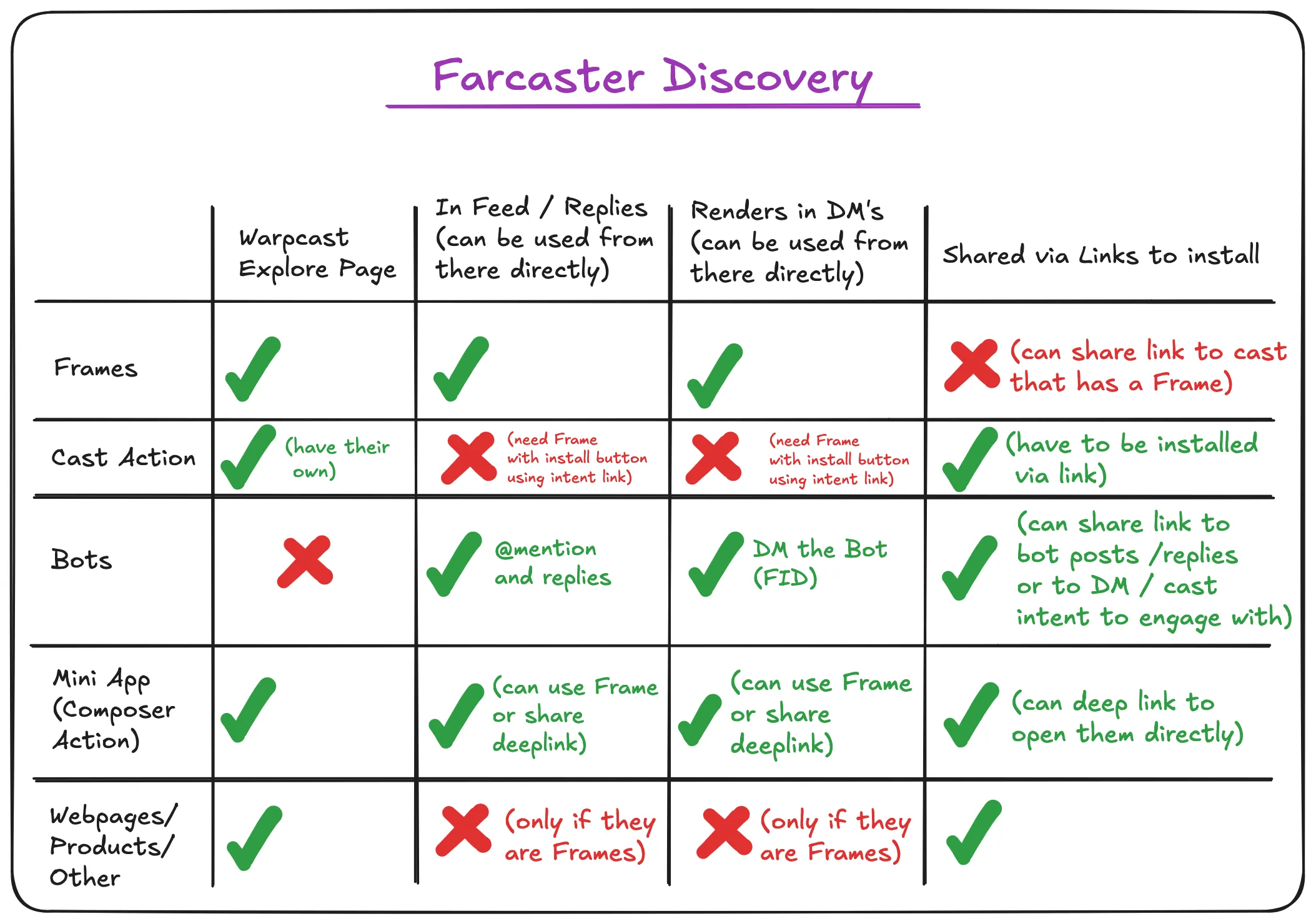
alt: Farcaster Sync discovery overview
Common Pitfalls to Avoid
- API Rate Limits: X imposes strict limits on API calls. If you post frequently, you may hit these limits, causing sync delays. Consider batching your posts or using manual mode during peak times.
- Permission Creep: Only grant the minimum permissions necessary. If a tool asks for access to your DMs or following list, decline and look for a more privacy-focused alternative.
- Ignoring Updates: Farcaster and X both update their APIs frequently. Keep your extension updated to ensure compatibility and security.
Is it safe to connect my X account to Farcaster Sync?
It is generally safe if you use the official extension and review permissions carefully. However, you are sharing API access, so treat it like any other third-party app. Revoke access if you no longer use the service.
Does Farcaster Sync cost money?
Most basic sync features are free, but advanced options like custom hashtags or priority support may require a subscription. Check the official pricing page for the latest details.
Can I sync only specific tweets?
Yes. You can configure the extension to sync only tweets with certain hashtags, mentions, or keywords. This gives you control over what appears on your Farcaster profile.
What happens if X changes its API?
If X modifies its API, the sync may break temporarily. The Farcaster Sync team will update the extension to comply with new terms. In the meantime, you may need to switch to manual posting.
Configure sync settings and filters
Now that your API keys are secured, the next step is teaching your sync tool what to share. Without filters, you risk spamming your Farcaster audience with every tweet, including low-effort replies or irrelevant links. The goal is to keep your Farcaster feed high-signal and valuable.
Define your posting scope
Start by selecting the types of X content that warrant a cross-post. Most tools let you choose between tweets, threads, or replies. For growth, threads usually perform best because they provide context and encourage discussion on Farcaster.
Avoid syncing every single tweet. If you post frequently, curate only your high-impact content. This ensures your Farcaster followers see your best work, not your daily noise.
Set up keyword and hashtag filters
Filters act as a safety net. You can exclude specific keywords or hashtags that don’t align with your Farcaster brand. For example, if you post about both crypto and cooking, you might filter out cooking-related tags to keep your Farcaster feed focused on finance.
Be careful with negative filters. Double-check that you aren’t accidentally blocking important content. A good rule of thumb is to start broad and then narrow down based on what actually arrives in your Farcaster client.
Preview and test
Before going live, use the preview feature in your sync tool. Check how your tweets render on Farcaster. Long threads might get truncated, and links might not behave as expected. Adjust your settings to ensure the formatting looks clean and readable.
This step prevents awkward cross-posts and maintains your professional image. Once you’re satisfied with the preview, enable the sync and monitor the first few posts closely.
Monitor sync performance and errors
Syncing X posts to Farcaster isn’t just a set-and-forget task. APIs disconnect, rate limits hit, and formatting glitches can leave your audience wondering where your content went. Because this involves API keys and wallet signatures, a failed sync can sometimes expose security risks if not handled correctly. You need a system to catch these issues before they become reputation problems.
Start by watching the logs. Most sync tools provide a dashboard or log file that records every attempt. Look for "401 Unauthorized" errors, which usually mean your API key has expired or been revoked. "429 Too Many Requests" means you’ve hit a rate limit; wait a few minutes before retrying. If you see "Invalid Signature," check your wallet connection—this is critical for maintaining security.
Common formatting errors often stem from X’s link previews or image handling. Farcaster has different character limits and media support. If a post fails to appear, check the raw output. Did a long URL break the character count? Did an image format not convert? Fix the template in your sync settings to auto-truncate or strip media that doesn’t translate well.
To keep your workflow smooth, use this quick troubleshooting checklist:
If issues persist, consult the official documentation for your specific sync tool or the Farcaster developer docs. Never share your private keys or API secrets in public forums or logs.
FAQ: Farcaster Sync and Setup
These answers address the most common questions about connecting your social presence and managing your Farcaster identity safely.
No comments yet. Be the first to share your thoughts!