What Farcaster Sync Does
Farcaster Sync acts as a bridge between Twitter (X) and the Farcaster protocol. It is a third-party integration that mirrors your X posts directly to your Farcaster feed. This tool allows you to maintain a presence on both platforms without manually copying and pasting content.
When you connect your accounts, the sync tool automatically publishes your X posts to Farcaster. This means your content appears on the Farcaster network and within the Base app, expanding your reach to a different audience segment. It turns your existing X activity into distributed content across the decentralized web.
Note that Farcaster Sync is not a native protocol feature but a third-party integration that mirrors posts. Verify the specific tool's terms before linking.
The goal is simple: reduce the friction of cross-posting. By automating the distribution, you can focus on creating content rather than managing multiple feeds. This setup helps you grow your audience on Farcaster by leveraging the content you are already producing on X.
Set Up Your Sync Connection
Linking your X account to Farcaster is a straightforward process that relies on a simple authorization handshake. The goal is to give a Farcaster-hosted application permission to read your X profile and post content on your behalf. Once connected, your posts flow automatically to your Farcaster feed and the Base app.
We will use the official Farcaster Sync tool from b3dotfun, which is the standard method for this integration. This tool handles the OAuth flow securely, ensuring you retain control over your data while automating your cross-platform growth.
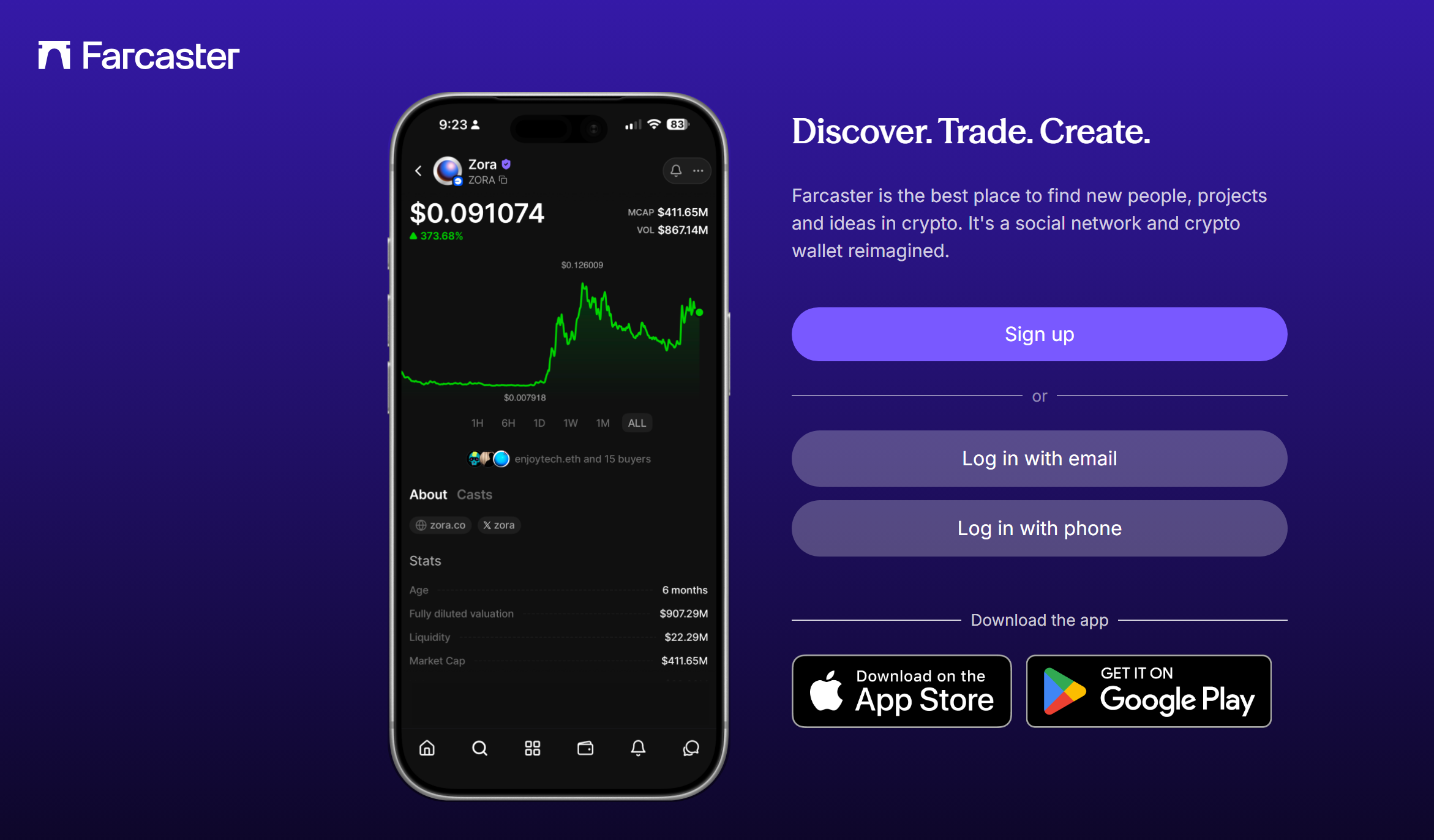
Navigate to the Farcaster Sync application. This is a web-based interface that acts as the bridge between your X account and your Farcaster identity. Ensure you are logged into your Farcaster account (via Warpcast or another client) before starting, as the tool needs to verify your on-chain identity first.
Click the button to connect your X account. You will be redirected to X’s official authorization page. Here, you must explicitly grant permission for the sync tool to post on your behalf. Review the permissions carefully—this typically includes posting tweets and accessing your profile information. Confirm the authorization to proceed.
Once authorized, you will be redirected back to the sync tool. The interface should confirm that your accounts are linked. You can test the connection by posting a short message in the tool’s preview window. If successful, this message will appear on your Farcaster feed and, after a short delay, on your X timeline as well.
Decide how you want to sync. You can choose to sync all posts, only posts with specific hashtags, or manually approve each post before it goes live. For most users, auto-syncing is the most efficient way to grow, but manual approval offers better control over your narrative. Save your settings to finalize the setup.
This setup creates a persistent link. You do not need to repeat this process unless you revoke access or change your Farcaster account. The sync runs in the background, allowing you to focus on creating content rather than managing multiple platforms.
Configure Content and Frequency
Syncing your X account to Farcaster is powerful, but leaving it on autopilot can lead to noise. You need to tailor the sync so it feels native to the Farcaster culture, which favors text-heavy, conversational threads over the link-heavy nature of X.
Start by defining what actually gets synced. Not every retweet or quote tweet belongs on your Farcaster feed. Filter for your core content—original posts, long-form threads, or specific keywords—to maintain quality. This prevents the "spam flag" risk where Farcaster users quickly mute accounts that appear to be dumping low-effort content.
Next, adjust the formatting. Farcaster users appreciate clean text. If your X posts contain heavy media or external links that don't render well, consider stripping them or using the sync tool's formatting options to prioritize the text body. Think of this as editing for a new audience, not just copying and pasting.
Finally, manage the frequency. If you post multiple times a day on X, consider syncing only the most impactful posts or batching them. This keeps your Farcaster presence consistent without overwhelming your followers.
Pre-sync Configuration Checklist
Before you go live, run through this quick audit to ensure your sync adds value rather than clutter.
-
Filter Content Types: Disable auto-sync for retweets and low-engagement posts.
-
Check Formatting: Ensure text posts render cleanly without broken link previews.
-
Set Frequency Limits: Decide on a max number of synced posts per day.
-
Test with a Single Post: Sync one recent post to verify it appears correctly on Farcaster.
Note: Always review the official Farcaster Sync documentation for the latest settings and capabilities, as the tool evolves rapidly.
Monetize Your Synced Audience
Farcaster Sync works best as a sequence, not a scramble through settings. Do the minimum first: confirm compatibility, connect the core hardware, update only when needed, and test the result before adding optional features. That order keeps the task understandable and makes failures easier to isolate. After each step, pause long enough for the interface to finish syncing. Many setup problems are timing problems disguised as configuration problems. If the same step fails twice, record the exact error, restart the smallest affected piece, and retry before moving deeper.
The simplest way to use this section is to keep the setup small, verify each change, and record the stable configuration before adding optional accessories.
Fix Common Sync Errors
When Farcaster Sync fails, the issue usually boils down to three things: connection glitches, duplicate posts, or hitting rate limits. Follow this sequence to isolate and resolve the problem.
Check API Permissions
First, verify that your X account has granted full read/write access to the sync tool. If permissions were revoked or expired, posts will fail silently. Re-authorize the connection in your X app settings, then click "Test Connection" in the Farcaster Sync dashboard to confirm the handshake is successful.
Prevent Duplicate Casts
Duplicate casts often happen if the sync triggers twice due to a network retry. Check your sync history for identical timestamps. If you see duplicates, disable the "auto-sync" toggle, wait ten seconds, and re-enable it. This resets the queue and clears any stuck pending posts.
Handle Rate Limits
X enforces strict API rate limits. If you see a "429 Too Many Requests" error, the sync has paused automatically. Wait 15 minutes before trying again. To avoid future blocks, reduce the sync frequency in settings to one post per hour rather than real-time. For official rate limit details, refer to X’s API documentation.
Farcaster Sync FAQ
Here are the specific answers to common questions about connecting your X account to Farcaster, monetization, and how the protocol actually works.
Helpful gear
Use these product recommendations as a starting point, then choose the size, material, and price point that fit how you actually use the gear.
As an Amazon Associate, we may earn from qualifying purchases.
No comments yet. Be the first to share your thoughts!